Yes, this is basically the old Australis theme for Firefox. I’ve attached an image of a textual mockup I made of the layout, made with Unicode box drawing characters. Ignore the gaps between lines.
Yes, this is basically the old Australis theme for Firefox. I’ve attached an image of a textual mockup I made of the layout, made with Unicode box drawing characters. Ignore the gaps between lines.
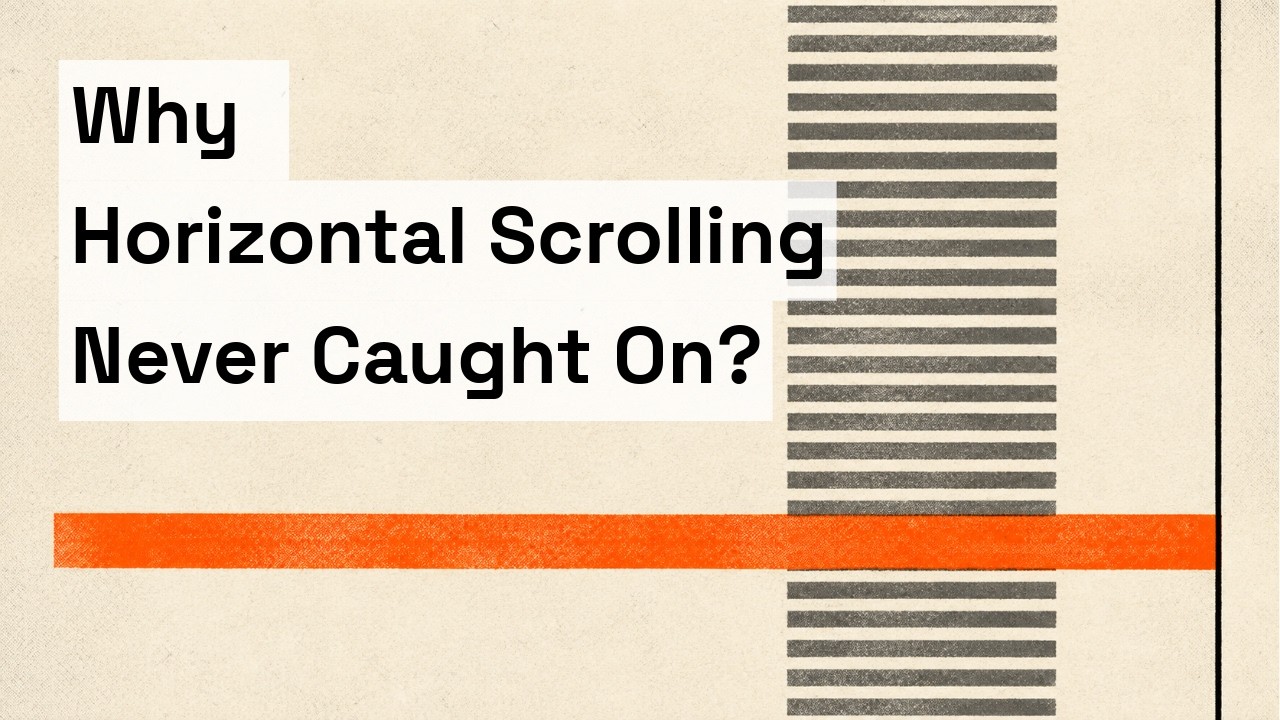
They go over how the web and frameworks decided against horizontal, apart from deliberate emphasis, they go over some desktop layout attempts, failures and successes (more of the same vs navigation), a chapter about (paper) documents as the source, and endless panes now using horizontal.
From the description:
Almost every screen we use is a landscape rectangle, wider than it is tall. And on almost all of them, the content moves vertically. Always down.
This video walks through a wrong question. If mobile scrolls down, why doesn’t the desktop scroll sideways?
The question turns out to be wrong.
Chapters
[00:00] Introduction
[01:23] The Web Could, and Doesn’t
[03:18] The Microsoft Bet - Windows 8 “Metro”/“Modern” failure
[06:18] What Makes a Difference - Layouts where horizontal works
They go over how the web and frameworks decided against horizontal, apart from deliberate emphasis, they go over some desktop layout attempts, failures and successes (more of the same vs navigation), a chapter about (paper) documents as the source, and endless panes now using horizontal.
From the description:
Almost every screen we use is a landscape rectangle, wider than it is tall. And on almost all of them, the content moves vertically. Always down.
This video walks through a wrong question. If mobile scrolls down, why doesn’t the desktop scroll sideways?
The question turns out to be wrong.
Chapters
[00:00] Introduction
[01:23] The Web Could, and Doesn’t
[03:18] The Microsoft Bet - Windows 8 “Metro”/“Modern” failure
[06:18] What Makes a Difference - Layouts where horizontal works
This talk focuses on that evil little term “UX/UI,” which is responsible for so much confusion and tension in open-source projects. Not only does it unnecessarily pit programmers against designers, but it also limits our vision of what we could be doing.
In this talk, Scott Jenson gives examples of how focusing on UX – instead of UI – frees us to think bigger. This is especially true for the desktop, where the user experience has so much potential to grow well beyond its current interaction models. The desktop UX is certainly not dead, and this talk suggests some future directions we could take.
Scott Jenson has been a leader in UX design and strategic planning for over 35 years. He was the first member of Apple’s Human Interface group in the late '80s, and has since held key roles at several major tech companies. He served as Director of Product Design for Symbian in London, managed Mobile UX design at Google, and was Creative Director at frog design in San Francisco. He returned to Google to do UX research for Android and is now a UX strategist in the open-source community for Mastodon and Home Assistant.
They present a bit of history, terminology, and current and alternative approaches to human interfaces.
This talk focuses on that evil little term “UX/UI,” which is responsible for so much confusion and tension in open-source projects. Not only does it unnecessarily pit programmers against designers, but it also limits our vision of what we could be doing.
In this talk, Scott Jenson gives examples of how focusing on UX – instead of UI – frees us to think bigger. This is especially true for the desktop, where the user experience has so much potential to grow well beyond its current interaction models. The desktop UX is certainly not dead, and this talk suggests some future directions we could take.
Scott Jenson has been a leader in UX design and strategic planning for over 35 years. He was the first member of Apple’s Human Interface group in the late '80s, and has since held key roles at several major tech companies. He served as Director of Product Design for Symbian in London, managed Mobile UX design at Google, and was Creative Director at frog design in San Francisco. He returned to Google to do UX research for Android and is now a UX strategist in the open-source community for Mastodon and Home Assistant.
They present a bit of history, terminology, and current and alternative approaches to human interfaces.
Microsoft pushed throughout 2023 to add generative AI capabilities to its software, even extending its new Copilot AI assistant to Windows 10 late last year. Now, those efforts to transform PCs at a software level is extending to the hardware: Microsoft is adding a dedicated Copilot key to PC keyboards, adjusting the standard Windows keyboard layout for the first time since the Windows key first appeared on its Natural Keyboard in 1994.
The Copilot key will, predictably, open up the Copilot generative AI assistant within Windows 10 and Windows 11. On an up-to-date Windows PC with Copilot enabled, you can currently do the same thing by pressing Windows + C. For PCs without Copilot enabled, including those that aren’t signed into Microsoft accounts, the Copilot key will open Windows Search instead (though this is sort of redundant, since pressing the Windows key and then typing directly into the Start menu also activates the Search function).
A quick Microsoft demo video shows the Copilot key in between the cluster of arrow keys and the right Alt button, a place where many keyboards usually put a menu button, a right Ctrl key, another Windows key, or something similar. The exact positioning, and the key being replaced, may vary depending on the size and layout of the keyboard.
We asked Microsoft if a Copilot key would be required on OEM PCs going forward; the company told us that the key isn’t mandatory now, but that it expects Copilot keys to be required on Windows 11 keyboards “over time.” Microsoft often imposes some additional hardware requirements on major PC makers that sell Windows on their devices, beyond what is strictly necessary to run Windows itself.
Microsoft pushed throughout 2023 to add generative AI capabilities to its software, even extending its new Copilot AI assistant to Windows 10 late last year. Now, those efforts to transform PCs at a software level is extending to the hardware: Microsoft is adding a dedicated Copilot key to PC keyboards, adjusting the standard Windows keyboard layout for the first time since the Windows key first appeared on its Natural Keyboard in 1994.
The Copilot key will, predictably, open up the Copilot generative AI assistant within Windows 10 and Windows 11. On an up-to-date Windows PC with Copilot enabled, you can currently do the same thing by pressing Windows + C. For PCs without Copilot enabled, including those that aren’t signed into Microsoft accounts, the Copilot key will open Windows Search instead (though this is sort of redundant, since pressing the Windows key and then typing directly into the Start menu also activates the Search function).
A quick Microsoft demo video shows the Copilot key in between the cluster of arrow keys and the right Alt button, a place where many keyboards usually put a menu button, a right Ctrl key, another Windows key, or something similar. The exact positioning, and the key being replaced, may vary depending on the size and layout of the keyboard.
We asked Microsoft if a Copilot key would be required on OEM PCs going forward; the company told us that the key isn’t mandatory now, but that it expects Copilot keys to be required on Windows 11 keyboards “over time.” Microsoft often imposes some additional hardware requirements on major PC makers that sell Windows on their devices, beyond what is strictly necessary to run Windows itself.
We just released Heroicons v2.1 which includes a brand new micro style — a full set of almost three hundred 16×16 icons designed for tighter, higher density UIs.
We just released Heroicons v2.1 which includes a brand new micro style — a full set of almost three hundred 16×16 icons designed for tighter, higher density UIs.